
Check servers in your open SSH tabs from an AI tool you already use
Connect an AI tool that supports MCP to Moorline and it looks at the servers you have open. You approve each request that runs on a server.
ProSince 1.0.010 min to set up
Features usedExternal agent (MCP)PairingServer scopeRequests
The situation
You already use an AI tool to work on code. To ask about a server's state, you have to copy terminal output and paste it into that tool.
An AI tool that supports MCP can connect to Moorline. Once connected, it sees the list of servers in your open SSH tabs and reads server info, folders, and files. Reads and commands that happen on a server are approved one by one by you in Requests in Moorline. Passwords are not sent to the AI tool.
How to do it
- Under Settings > AI > External agents (MCP), turn on Allow external agent connections. It is off at first.
- Once it is on, the Registration guide shows a registration command for each tool. Select Copy for the tool you use and register it in that AI tool once.
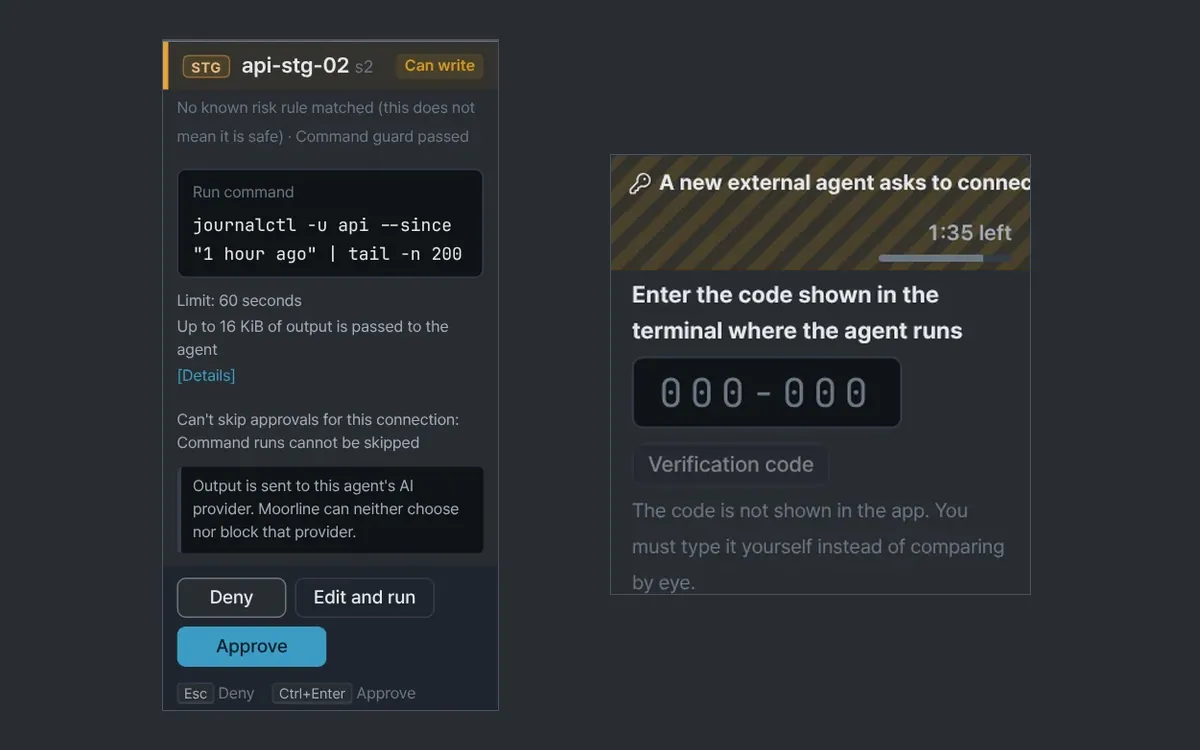
- Start the AI tool. When it connects for the first time, a pairing card appears in Requests in the AI panel. Type the 6-digit code shown in the AI tool's terminal into the card yourself. The app does not display the code, and the card closes after three wrong tries. If the program path on the card is not the tool you started a moment ago, deny it.
- After you allow it, set the scope. For Server scope, choose All SSH tabs that are open now or Servers I choose. In Tools it can use, reading is the default (server info, browsing folders, reading files, searching text). Run commands and Read terminal screen work only after you turn them on.
- Keep the tabs of the servers you want checked open and ask the AI tool. For example, ask it to check disk usage and log folder size on every open server and report only the ones that differ from the rest.
- Each time the AI tool reads a server, an approval card appears in Requests. Read the server, the environment, and the command or path, then approve inside the card with Ctrl+Enter (Cmd+Enter on macOS) or select Deny. Enter alone does not approve.
Cutting the connection
- Stop this client in Requests ends that AI tool's connection. Pause this server blocks a single server for a while.
- Stop all agents stops every request in progress. To receive requests again, turn Allow external agent connections back on in Settings.
- In the client list in Settings, you rename a tool, use Change scope, or Revoke it. Before a revoke, it shows what is happening now, and the first focus is on Cancel. A revoked tool has to pair again before you can use it.
- If you suspect theft, revoke instead of rotating the key.
Tips
- A server whose tab you closed is not visible to the AI tool, even if it is in the scope.
- Server names do not go to the AI tool by default. Only an alias, the operating system, the shell, the environment, and whether it is connected go. Names go only for servers where you turn on Show names in the scope.
- Production servers and servers with no environment set join the scope only after you select Include production servers....
- A server with Don't send this server's screen or info to AI turned on is hidden from the AI tool regardless of the scope.
- Notes for the AI, under Extras in the server editor, reach the AI tool per server in the server list.
Good to know
- An external request closes as denied if you do not answer within 120 seconds.
- A collapsed row has no approve button. You can approve only after you expand the card and read it.
- External cards have no Why field. An explanation written by the AI tool is no reason to trust it, so decide from the command and the server.
- Server output goes to the AI provider that tool uses, after known secret shapes are masked. Moorline cannot choose or restrict that provider, and some secrets may not be masked.
- What the AI tool does on this PC with its own tools (local commands, file edits, direct
sshconnections) is not checked or blocked by Moorline. - Every command that runs on a server passes the command guard.
- If it does not connect, check that Moorline is running and that the switch in Settings is on, then use Copy again to copy the connection program again.
With the 1.0.0 guide and automated tests (using a fake AI tool), pairing, scope, approval cards, and revoking were checked. It was not tried with a real AI tool.