
Get an AI explanation of an error and a command to fix it
Send an error from the terminal to the AI assistant and get an explanation of the cause. A suggested command is only placed on the input line, and you run it yourself.
ProSince 1.0.05 min to set up
Features usedAI assistantExplain the last errorPreview of what is sentSecret redaction
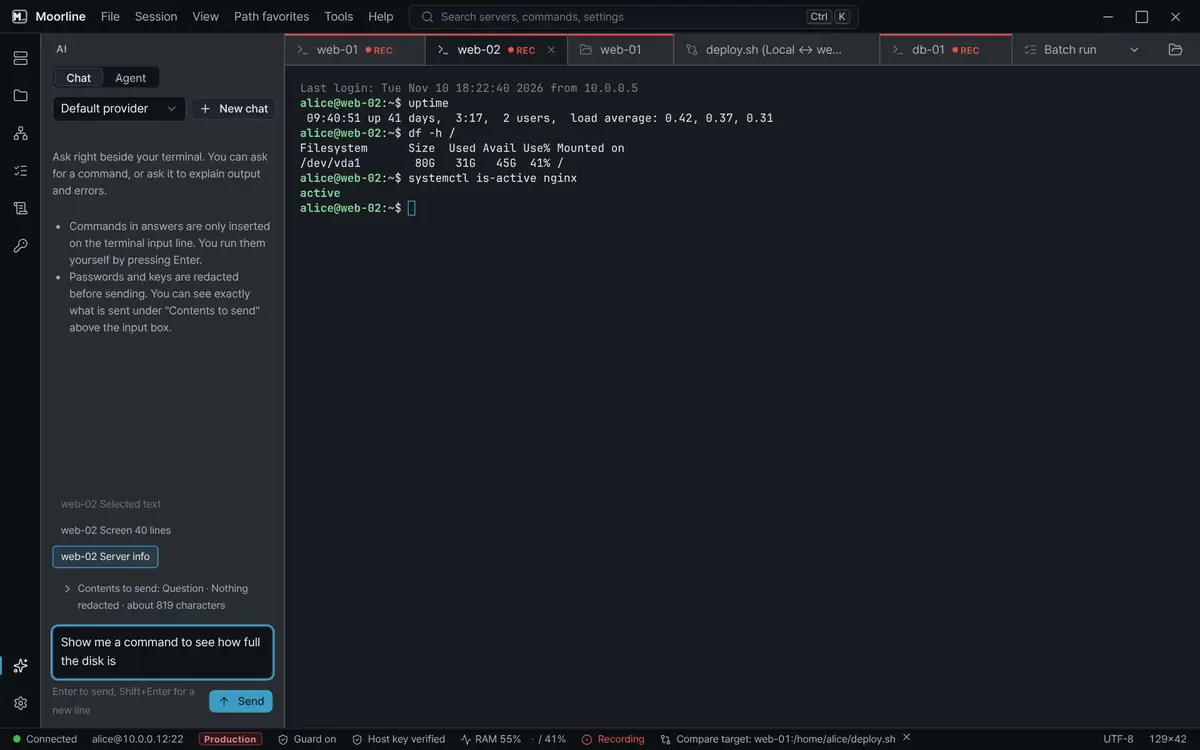
The situation
A deploy script stops with Permission denied or no space left on device. You copy the message into an AI chat in the browser and move the command from the answer back to the terminal. You have to scan the pasted text yourself for tokens or passwords.
The AI assistant in Moorline does the same job in a panel next to the terminal. You can see what will be sent before it goes out, and secrets of known shapes are masked. A command in the answer is placed on the input line and is not run.
Once, you have to register the address and key of the AI provider you use under Settings > AI. Moorline does not provide an AI itself.
Option 1. Check, then send from the panel
- On the terminal tab where the error appeared, select the AI icon in the left bar to open the panel.
- Type what you want to know in the question box. For example, the cause of this error and how to check it.
- Choose what to send with the chips above the box. If the error is on screen, turn on Screen 40 lines. You change the number of lines under Settings > AI. To send only the error, select that text in the terminal and turn on Selected text.
- Expand the Contents to send line. The exact text that will go out is shown, and masked parts are marked. If something is masked but is not a secret, release it with This is not a secret, only for parts you have checked.
- Select Send. While the answer is coming in, Stop ends it.
- A command in the answer appears as a card. After the answer has finished, select Insert in terminal. Only the text is placed on the input line. Read it and press Enter yourself.
Option 2. Send with a right-click
Right-click the terminal and select Explain the last error. Server info and the recent screen lines go out with the question. Selected text goes too, if there is any. This option has no preview before sending. To be asked before every send, turn on Confirm every time under Settings > AI.
Tips
- To ask only about part of the output, select that text and choose Explain with AI in the right-click menu.
- Press Ctrl+Shift+A in the terminal to open the input line. Type what you want to do and it writes the command.
- Put what the AI should know about a server in Notes for the AI, under Extras in the server editor. For example, a note not to restart services. Do not write passwords or keys there.
- For a server that must not be sent anywhere, turn on Don't send this server's screen or info to AI under Advanced in the server editor.
Good to know
- The AI can give a wrong command. Read commands that delete, change permissions, or stop services before you run them.
- When you press Enter on an inserted command that is dangerous, the command guard asks once more.
- Secret masking is not complete. It misses a password inside a sentence, a token name made up inside your company, and a token broken by a line break. That is why you expand the contents to send and read them.
- Questions go only to the provider you registered.
- The log records where something was sent and how many parts were masked, as a sentence. By default it does not keep the text of questions or answers.
- This is a Pro feature and is not available in the Free edition.
With the 1.0.0 guide and automated tests (using a fake AI server), the preview of what is sent, secret redaction, and Insert in terminal were checked. The right-click Explain the last error was checked by reading the guide and the code. It was not tried against a real AI provider.